Tangem Card Not Scanning? NFC Troubleshooting for iPhone and Android
Is your Tangem card not scanning when you tap it to your phone? We know how stressful that moment is, especially when your crypto is on that card. The good news is that the card is rarely the problem, and most scanning issues can be fixed in a couple of minutes with your phone’s settings and a steady hand.
Why Is My Tangem Card Not Scanning?
Your Tangem card has no battery, no buttons and no cable. It talks to your phone through NFC (near field communication), the same short-range wireless tech used for tap-to-pay. NFC only works when the card is within a few centimetres of your phone’s antenna. A thick or metal phone case, a bank card tucked in your phone wallet, or the card shifting mid-scan can all break the connection.
The rest usually comes down to settings or the phone itself. On Android, NFC can be switched off, and the antenna sits in a different spot on almost every model. A few phones simply aren’t up to the job. Tangem doesn’t support the iPhone 6, iPhone 6s or first-generation iPhone SE. It also flags the Samsung Galaxy A30s, Galaxy A52, Xiaomi Redmi 9C and Redmi Note 8 / 8 Pro as having weak NFC.
How to Fix a Tangem Card That Won’t Scan
Work through these in order. Most people are sorted by step two or three.
1. Take Off Your Phone Case
Thick and metal cases are the most common reason a Tangem card won’t scan. Pop the case off and try again, even if the card used to work with it on.
2. Move Other Cards Away
Contactless bank cards and transport cards can confuse your phone’s NFC reader. Take them out of your phone wallet before you tap your Tangem card.
3. Find Your Phone’s Sweet Spot
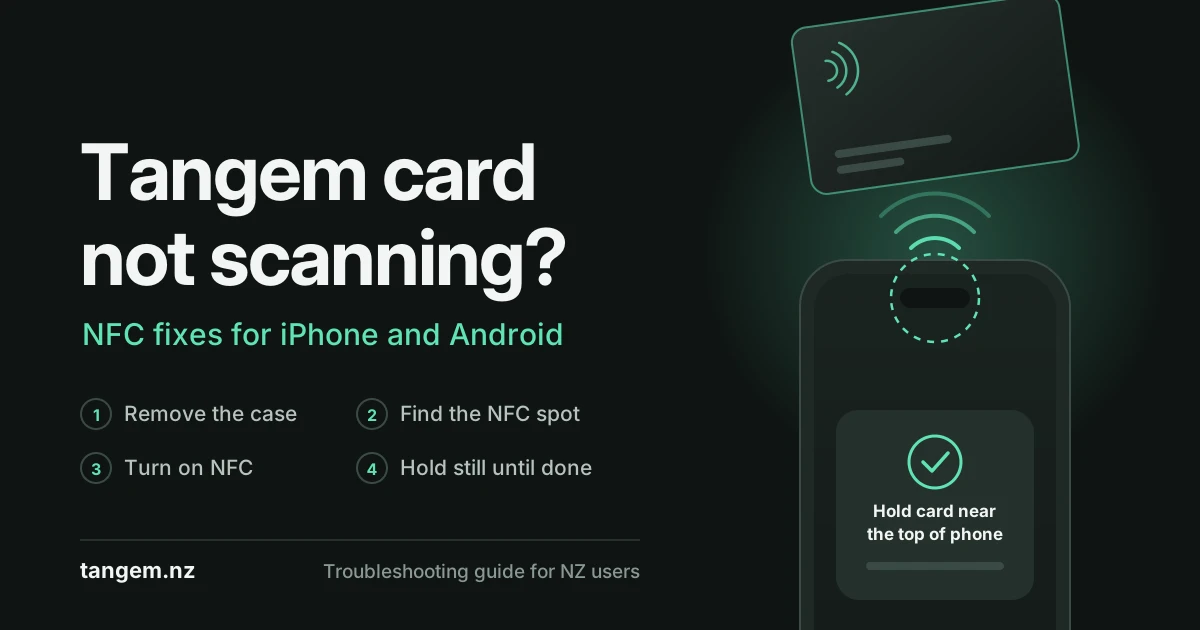
On an iPhone, hold the card against the top of the phone near the front camera. On Android, the antenna’s position varies by model, so tap “How to” in the Tangem app’s scan window to see exactly where yours is.
4. Check NFC Is Turned On
On a Samsung Galaxy, go to Settings > Connections > NFC and contactless payments. On a Google Pixel, go to Settings > Connected devices > Connection preferences > NFC. iPhones don’t have an NFC switch, so you can skip this step.
5. Hold Still and Be Patient
Keep the card and phone still until the scan window closes. Android phones sometimes need a second or two longer. Don’t leave the card on your phone while you type your access code. Put it back only when the scan window opens.
6. Restart Your Phone
If you see error 30004, 50003 or 90014, your phone’s NFC module has hit a temporary glitch. A quick restart usually clears it.
Still no luck? Tangem’s official scanning troubleshooting guide covers rarer errors. You can also tap Cancel twice during a scan to send a support request straight from the app.
Tips for Tangem Users in New Zealand
- Give your Tangem its own home. Tangem doesn’t recommend keeping the card in your phone case. That goes double if your AT HOP card in Auckland or Snapper card in Wellington already lives there.
- Ring owners, take it off first. The Tangem Ring has a smaller antenna than the card. Slide it off your finger and rest it right on your phone’s NFC spot.
- Test before you transfer. If your phone is on the weak-NFC list above, do a few practice scans before moving any funds.
- Know your backup plan. Read how Tangem backup cards work so one faulty card never locks you out.
- We’re here to help. If you bought from us and nothing’s working, get in touch with our NZ team.
Do You Need a New Tangem Card?
Probably not. Most scanning problems come from the phone, not the card, and every card in your set is an equal key to the same wallet, so a working backup still gets you in. If you’re starting a fresh wallet, the Tangem Wallet 2-Card Set is $109.99 NZD, the 3-Card Set is $139.99 NZD, and the Tangem Ring with two cards is $320.00 NZD, all including GST.
FAQs
Do Tangem cards work with every iPhone?
No. Tangem doesn’t support the iPhone 6, iPhone 6s or first-generation iPhone SE because their NFC is too limited, so you’ll need a newer iPhone.
Can a phone case stop my Tangem card from scanning?
Yes. Thick or metal cases often block the NFC signal, so taking the case off is the first thing to try.
Do I need to turn on NFC to scan a Tangem card?
Yes. On Android, switch NFC on in Settings, for example under Connections > NFC and contactless payments on Samsung. iPhones have no NFC switch, so there’s nothing to change.
Is error 50003 a sign my Tangem card is broken?
No. Errors 30004, 50003 and 90014 point to a temporary glitch in your phone’s NFC module, and restarting your phone usually fixes it.
Can I still access my crypto if one Tangem card won’t scan?
Yes. Every card in your Tangem set is an equal key to the same wallet, so any working backup card or ring will still open it.
Conclusion
A Tangem card not scanning is almost always a phone issue, not a faulty card. Take off your case, clear other cards away, find your NFC spot, check NFC is on and hold still until the scan finishes. A minute or two of troubleshooting usually gets you back into your wallet without replacing anything.
Need a new set or a spare? Browse our full range of Tangem Wallet card sets, or follow Google’s guide to turning on NFC if your Android settings look different.
A Tangem card not scanning is almost always a phone issue, not a card fault. Remove your case, clear other cards away, find your NFC spot, make sure NFC is on and hold still until the scan completes. A few seconds of troubleshooting usually gets you back into your wallet without replacing anything.
For more help with setup, browse our Tangem Wallet card sets or read Google’s guide to turning on NFC.